Costa News Spain Breaking News | English News in Spain.

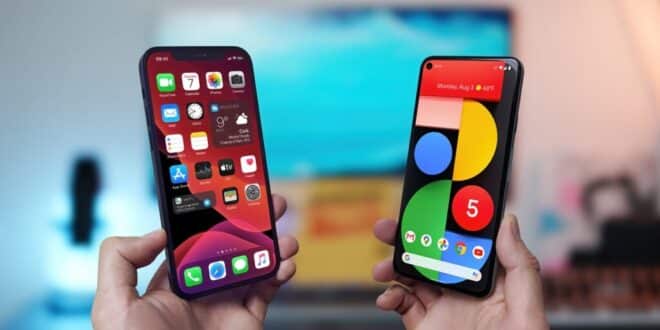
iPhones and Androids show green or yellow dots to alert users when an app accesses the microphone or camera.
Credit : Shutterstock, Mr.Mikla
Don’t ignore the tiny green or yellow dot that appears at the top left corner of your iPhone screen or Android.
That little indicator might be telling you that something important – and potentially invasive – is going on.
Apple and Google introduced this privacy feature to let users know when they are being monitored. It’s discreet, automatic, and non-negotiable – and it’s one of the simplest yet smartest tools modern phones have introduced to fight digital snooping.
What does the green and yellow dots on your mobile phone mean?
This is how it works
On iPhones (especially newer models with Dynamic Island) and many Android devices (like Samsung’s recent releases), a green dot will appear if your camera is in use – or if both the camera and microphone are active at the same time. A green dot indicates that the camera is active, while an orange dot means the microphone only.
These alerts appear on the status bar while you are using another app, and they do so silently. You might not even realise your mic or camera is recording — and that’s exactly why the feature exists.
Consider it a digital nudge. “Hey, somebody is watching or listening.”
Why and how to protect your phone privacy
These visual alerts go beyond being a nice bonus in an age of data leaks, phone hacking, and app tracking. These alerts are there to flag any suspicious background activity and allow you to act quickly if anything seems out of place.
Are you concerned about which apps are accessing your microphone or camera?
- Control Centre is opened by swiping down on iPhone. The app name should be at the top.
- Android: Tap the dot to reveal which app you are currently using.
If you don’t like something, you can revoke the permission:
iPhone
You have to go to Settings, then Privacy & Security, and select Microphone or Camera to turn off access for any app you don’t trust.
On Android
Alternatively, you can also go to Settings and then Apps. You can then make changes by going to Permissions and tapping on Camera or Microphone.
How a tiny lamp can help protect your digital privacy
No, you can’t turn off the green or orange dot – and that’s a good thing. This is your phone’s method of keeping you in charge, even if apps are doing more than you think.
In a world where our phones are extensions of our lives, features like this aren’t just technical quirks — they’re part of a broader shift towards user awareness and digital self-defence.
Don’t ignore the little light that appears on your phone screen. Your phone could be trying to tell you something important.